 Christopher Dellen
How to Use HubSpot Prospecting Agent to Get More Out of Your Sales Team
 Christopher Dellen : (June 18, 2026)
What Is HubSpot Prospecting Agent?




|
Manufacturing CompaniesConnecting churches with communities through inspired marketing |

|
ChurchesDriving growth, one product at a time – marketing solutions for manufacturers |
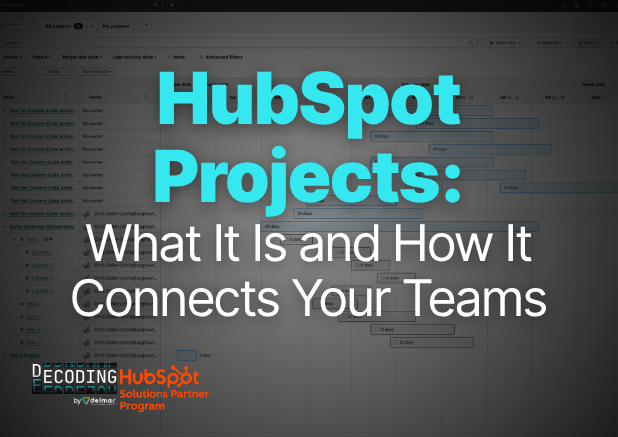
HubSpot Projects is not an experiment or a side tool bolted onto your CRM. HubSpot officially launched the projects object at Inbound 2025, positioning it as a full CRM object, sitting right alongside deals, companies, contacts, and tickets inside your HubSpot portal.
Before this, project work was stored in different places. Asana. Trello. A spreadsheet that someone promised to keep updated. Your customer data was in HubSpot, while client tasks, deadlines, and team handoffs were scattered elsewhere. Your team spent a lot of time and energy manually bridging the gap between these systems. Handoffs were missed. Context was lost. Momentum stopped right when it should have been building.
.png?width=600&height=424&name=Project%20Object%20(5).png) The projects object changes that dynamic entirely. Projects now live alongside your deals, contacts, and tickets in one connected system. When a deal closes, the context, the customer history, the communication, all of it is already there. Your team doesn't have to go hunting for it.
The projects object changes that dynamic entirely. Projects now live alongside your deals, contacts, and tickets in one connected system. When a deal closes, the context, the customer history, the communication, all of it is already there. Your team doesn't have to go hunting for it.
HubSpot also introduced a native Gantt view (pictured) alongside the projects object, giving teams a visual timeline to manage and adjust project tasks in real time. It's worth noting the Gantt view requires a Starter plan or above.
According to HubSpot, customers consistently asked for three things when it came to project management inside their CRM.
The projects object was built to answer all three.
.png?width=940&height=172&name=Pro%20Tips%20(2).png)
HubSpot has been clear about this from the start. The projects object is built for go-to-market teams, specifically sales, service, and marketing. It's not trying to replace sophisticated project management tools like Asana for teams running complex product roadmaps. Instead, it's designed to support delivery and execution that's tied directly to customer work.
From early adoption, HubSpot has consistently seen three major use cases emerge.
Service delivery is by far the most common. This includes customer onboarding, professional services work, and even physical goods or production delivery. Nearly half of active projects users today hold a service seat, which tells you a lot about where the biggest pain has been.
Marketing teams are using it to plan and execute campaigns without leaving HubSpot. While HubSpot campaigns already support tasks, marketers wanted true project management alongside their campaign work. The projects object reduces the constant context switching that slows teams down and makes it harder to stay coordinated.
Sales and account management teams are using it for structured enterprise motions. Think upsells, cross-sells, and multi-stakeholder deals that require coordinated task execution across multiple people and timelines. For teams managing complex deals, having project work connected directly to the deal record is a meaningful upgrade.

The good news? Activating the projects object is straightforward. No complex setup, no developer required. Here's how to do it step by step.
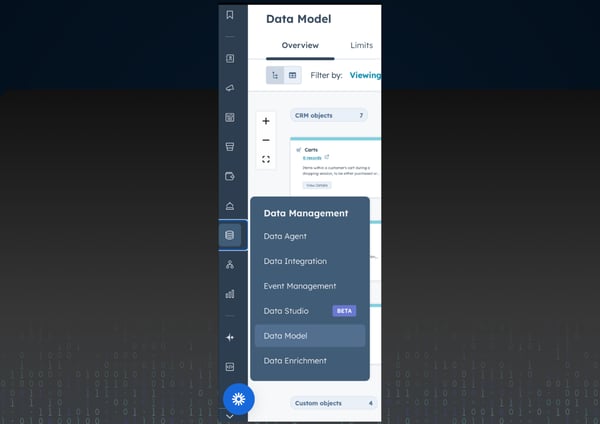
Step 1: Navigate to Data Management
In your HubSpot account, click the settings cog in the upper right corner. In the left panel, scroll down to the Data Management section and click Data Model.
.png?width=600&height=424&name=Project%20Object%20(6).png) Step 2: Open the Data Model Builder
Step 2: Open the Data Model Builder
In the upper right corner of the Data Model page, click Edit Data Model. This opens your HubSpot Data Model Builder where all your CRM objects live.
Step 3: Activate the Projects Object
Find the projects object inside the Data Model Builder and click Activate Object. A confirmation dialog box will appear. Click Confirm.
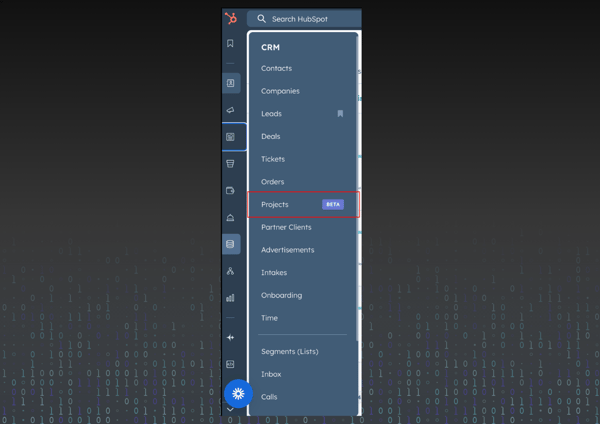 Step 4: Find Projects in Your CRM
Once activated, the projects object will immediately appear in your CRM navigation with its own index page. You'll see it listed under CRM in your left-hand sidebar alongside your deals, contacts, and tickets.
Once the projects object is activated, you have immediate access to a robust set of configuration options. Think of it like setting up any other CRM object in HubSpot. Here's what's available today:

This is where the projects object gets really exciting. HubSpot allows you to automate project creation using workflows, so the moment a deal hits your Closed Won stage, a project is automatically created, named, assigned a start date, and dropped into the right pipeline stage. No manual entry. No dropped handoffs. No "hey, did anyone create the project yet?" Slack messages.
Here's exactly how to build it.
Step 1: Create a Template Property Before building your workflow, head to your project properties and create a new dropdown property called Templates. Add an option for each project template you want to use, for example Template A for onboarding and Template B for professional services. This property is what tells HubSpot which set of tasks to generate later.
Step 2: Build a Deal-Based Workflow Navigate to Workflows and create a new workflow from scratch. Select Deal as your object type. Set your enrollment trigger to fire when a deal reaches your Closed Won stage.
Step 3: Add the Create Record Action Inside the workflow, add a Create Record action and select Project as the record type. From here you can configure the following:
Save your workflow and turn it on.
Step 1: Create a Project-Based Workflow Create a second workflow from scratch and select Project as the object type this time. Set your enrollment criteria to trigger when a project enters your Planning stage and the Template property is set to Template A.
Step 2: Add Your Tasks Inside the workflow, use the Create Task action to build out every task your team needs for that project type. For each task you can set:
Build out as many tasks as your process requires. Each one will be automatically generated and associated with the project record the moment it hits your Planning stage.

Once your projects are live, HubSpot gives you four ways to view and manage them depending on how your team likes to work. No single view is the right one for every team, so it's worth knowing what each one offers before you settle on a default.
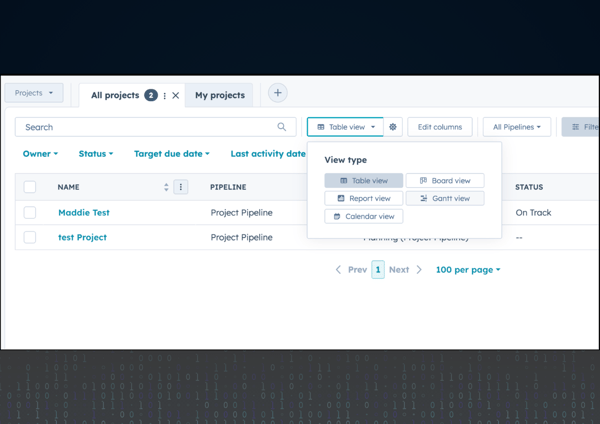 Gantt View is the most powerful addition and the one HubSpot highlighted at Inbound 2025. It gives your team a visual timeline of every project and its associated tasks. You can expand tasks directly on the timeline, adjust start and end dates by dragging bars, and any change you make updates the underlying task record in real time. It's the closest thing to a dedicated project management tool without ever leaving HubSpot. Note that Gantt view is currently in beta and requires a Starter plan or above.
Board View gives your team a kanban-style layout showing where each project sits in its pipeline stages. If your team is already comfortable managing deals in a board view, this will feel immediately familiar.
Calendar View lets you see projects laid out by their scheduled due dates or completion dates. Useful for teams that need a bird's-eye view of what's coming up across multiple projects at once.
Index View is your standard list view of all active projects. Clean, simple, and easy to filter and sort when you need to find something fast.
Projects are accessible in two places. First, directly inside your CRM view under the left-hand navigation once the object is activated. Second, inside the Customer Success workspace under Service, where projects appear alongside your customer health data and support tickets. HubSpot is also actively working to integrate projects into Marketing Studio, so expect that footprint to grow.

The projects object is still in beta, and HubSpot has been transparent about that. But the roadmap they've shared suggests this tool is going to get significantly more powerful in the months ahead. Here's what HubSpot has indicated is coming next. Keep in mind these are roadmap items and timelines can change.
Subtasks* will allow teams to break individual tasks down into smaller, more manageable steps. For teams managing complex client onboarding or multi-phase delivery work, this is a big one. *Already launched
Task Dependencies and Critical Path will let you define which tasks need to be completed before others can start. This is standard functionality in dedicated project management tools and its addition will bring the projects object much closer to feature parity with tools like Asana.
Status Updates will give project stakeholders a way to communicate progress directly inside the project record, reducing the need for external status meetings or update emails.
Project Templates are coming natively, which means you won't have to rely on the workflow workaround we covered in Section 4 to standardize your project setup. HubSpot will eventually support templates built directly inside the projects object.
Time Tracking and Workload View are also on the horizon. For service businesses managing billable hours or teams trying to balance capacity across multiple projects, these two features alone could make the projects object a genuine replacement for standalone project management tools.

Project object is an exciting new addition. It doesn't just add a feature. It closes a gap that has been costing service teams time, context, and momentum every single time a deal crossed the finish line.
You now know what the projects object is, who it's built for, how to activate it, how to automate it, and how to view and manage it across your team. The roadmap ahead is packed with features that will only make it more powerful. But the most important thing you can do right now is start.
Activate the object. Build one pipeline. Set up the two workflows. Let HubSpot do the heavy lifting so your team can focus on delivering exceptional work instead of chasing down project updates across three different tools.
The teams that start building this habit today will have a significant head start when the full feature set arrives.


Christopher Dellen : (June 18, 2026)
What Is HubSpot Prospecting Agent?
Christopher Dellen : (April 24, 2026)
Are your HubSpot forms quietly killing your leads? Research shows that 81% of people have abandoned a web form after starting to fill it out, and if...

Christopher Dellen : (May 21, 2026)
{% video_player "embed_player" overrideable=False, type='hsvideo2', hide_playlist=True, viral_sharing=False, embed_button=False, autoplay=False,...